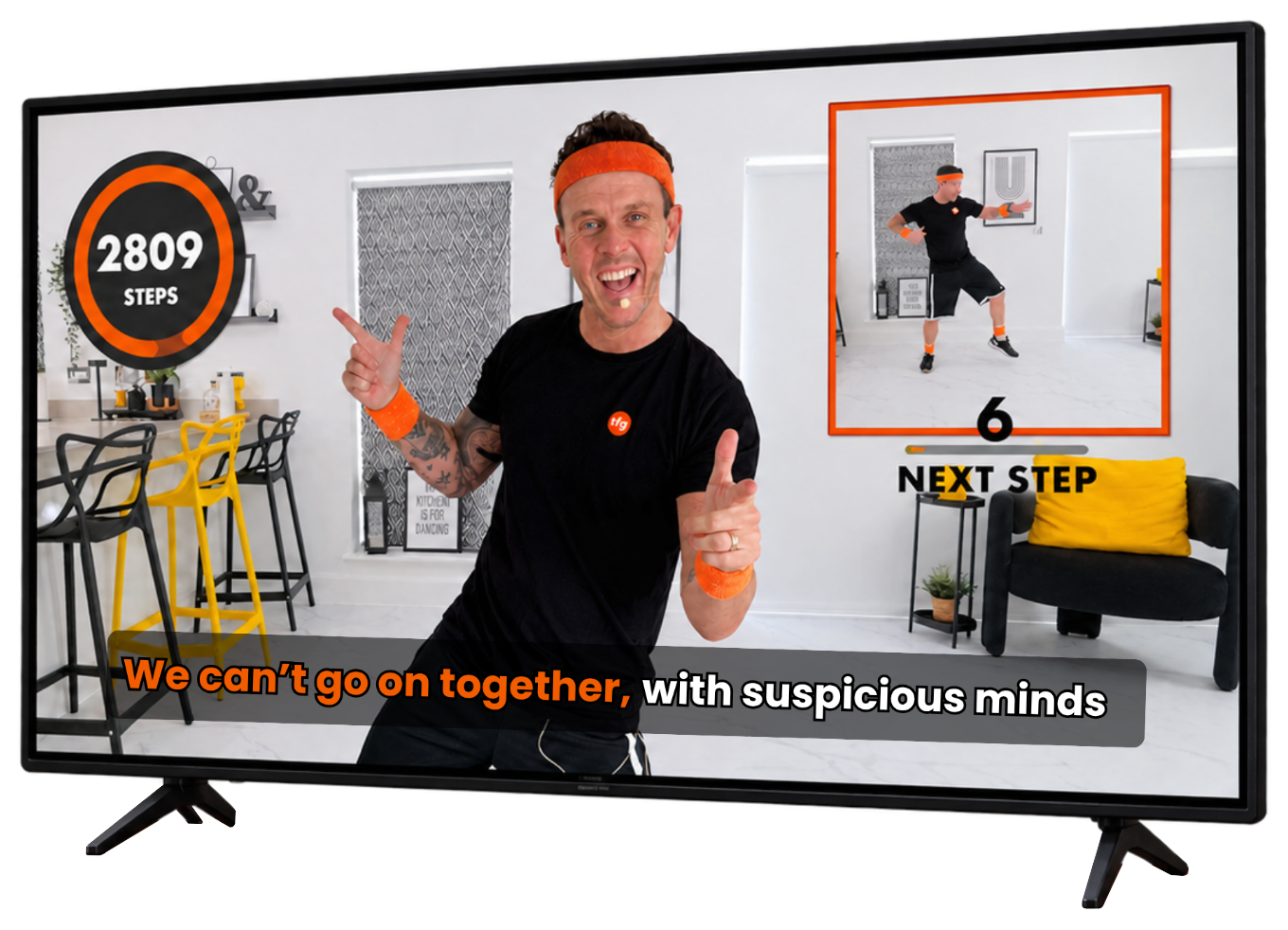
Steve tested AirPlay from the Karaobics iPhone app to a Samsung Q7 Series TV with both picture and sound. AirPlay availability depends on your model.
Watch on an LG TV
If you use LG’s own app store, choose another way to play Karaobics. You can use an iPhone with an AirPlay-compatible model, a streaming stick or a cable.
Look along the side as well as the back. HDMI is usually a wide, flat socket with two angled corners.
If your TV only has SCART or the round red, white and yellow sockets, a standard HDMI lead will not fit. You can play the workout on your phone, tablet or computer while we help you identify your options.
To ask us about your TV, send its model number or a photo of the sockets through Karaobics help and contact.
Which stick or box do you use?
Look at the name on its remote, or press Home and check what appears on the TV.
On the TV remote, press Source or Input and select the HDMI number for the device you want. On Sky Glass, press Home and look under Apps and inputs. To return to your usual programmes, choose the original input.
Watch with a Chromecast
If your Chromecast has no remote, use your phone, tablet or computer to choose the workout. Switch your TV to the HDMI input your Chromecast is plugged into.
Fire tablets use Amazon’s app store. If your tablet can already play the workout, you can keep watching there. To move it onto the TV, start with your TV or streaming stick.
Look for a small stick or box connected to the back of the TV. Its name may be on the case. If you want help identifying it, send a photo of your remote or TV home screen through Karaobics help and contact.
What are you plugging into the TV?
You’ll need a TV with an HDMI input, an HDMI lead and a device that can send video out.
Use this when you already have the Karaobics app open and can see a square QR code.
Open Karaobics and choose Sign in
Leave the sign-in screen open on your TV.
Point your phone camera at the square code on your TV
Tap the link that appears on your phone. Sign in with the email you use for Karaobics TV. If you’re already signed in, follow the prompt to connect.
Choose a workout on the TV
Once connected, the TV moves on automatically. Pick a workout with the remote and press Play.
Show me the Roku sign-in screen
Sign in
Go to karaobics.tv/connect or scan the QR code on your TV.
Your six-character code
Refresh codeConfirm
Sign in with email address
Example of the Roku sign-in screen. Use the code displayed on your own TV.
More sign-in options
I can’t scan the square code
On your phone, tablet or computer, open karaobics.tv/connect. Sign in and enter the six characters shown on your own TV when asked.
The code has expired
On your TV, choose Refresh code, then use the new code on your phone. Keep the TV on this screen while you connect.
Can I use the remote to sign in?
If you see Sign in with email address, choose it and enter your Karaobics account details using the remote.
I’m being asked to join or my workouts look locked
Choose Sign in and use the email for your existing Karaobics account. Your trial or subscription works across supported devices. If you claimed a free workout, find it under My Library at the top of the workouts page.
I’ve forgotten my password
Open karaobics.tv on your phone. Choose Sign in and request a sign-in link by email, or choose the password option to reset it.
Watch on Roku
Have Karaobics installed already? Go straight to sign-in help.
On your Roku remote, press Home
Choose Search. If you don’t see it, open Streaming Store or Streaming Channels and look for Search.
Search for Karaobics
Choose Add app or Add channel, then open Karaobics.
Sign in with your phone
Select Sign in on the TV. Open your phone camera, point it at the square QR code on your TV and tap the link. Use your existing Karaobics email to sign in.
Pick your workout
The TV opens the workouts automatically after you sign in. Choose one with the remote and press Play.
Need a hand?
Show me the Roku sign-in screen
Sign in
Go to karaobics.tv/connect or scan the QR code on your TV.
Your six-character code
Refresh codeConfirm
Sign in with email address
Example of the Roku sign-in screen. Use the code displayed on your own TV.
My TV is on the usual channels
If you use a separate box or stick, press Source or Input on your TV remote. Select the HDMI number beside the socket where the stick or box is plugged in. Then use the stick or box remote.
Karaobics doesn’t appear in search
Check for a Roku software update and try Search again. Older Roku models may not support the app. Find another way to watch.
Open the workouts page with the account you used to claim it. Look at the top under My Library.
Watch on Amazon Fire TV
Have Karaobics installed already? Go straight to sign-in help.
Press Home on your Fire TV remote
Open Find or the magnifying glass and select Search.
Search for Karaobics
Choose Get or Download, then open Karaobics.
Sign in with your phone
Select Sign in on the TV. Open your phone camera, point it at the square QR code on your TV and tap the link. Use your existing Karaobics email to sign in.
Pick your workout
The TV opens the workouts automatically after you sign in. Choose one with the remote and press Play.
Need a hand?
My TV is on the usual channels
If you use a separate box or stick, press Source or Input on your TV remote. Select the HDMI number beside the socket where the stick or box is plugged in. Then use the stick or box remote.
Karaobics doesn’t appear in search
Check for a software update in your Fire TV settings. Some older Fire TV Sticks and some newer models use software with different app availability. If Karaobics is missing from your model’s store, choose another way to watch. Find another way to watch.
Open the workouts page with the account you used to claim it. Look at the top under My Library.
Watch on Apple TV
Have Karaobics installed already? Go straight to sign-in help.
Open the App Store on your Apple TV box
Use the Apple TV remote to open the blue App Store icon and select Search.
Search for Karaobics
Choose Get or the cloud download button, then open Karaobics.
Sign in with your phone
Select Sign in on the TV. Open your phone camera, point it at the square QR code on your TV and tap the link. Use your existing Karaobics email to sign in.
Pick your workout
The TV opens the workouts automatically after you sign in. Choose one with the remote and press Play.
Need a hand?
My TV is on the usual channels
If you use a separate box or stick, press Source or Input on your TV remote. Select the HDMI number beside the socket where the stick or box is plugged in. Then use the stick or box remote.
Karaobics doesn’t appear in search
An Apple TV box that supports the App Store can install apps. The Apple TV app on another brand of smart TV is for watching Apple’s programmes. Open your TV’s own app store or choose AirPlay on a compatible TV. Find another way to watch.
Open the workouts page with the account you used to claim it. Look at the top under My Library.
Watch on Google TV or Android TV
Have Karaobics installed already? Go straight to sign-in help.
Open Apps on the TV home screen
Choose Search for apps. On Android TV, you may find Search inside the Google Play Store.
Search for Karaobics
Choose Install, then open Karaobics.
Sign in with your phone
Select Sign in on the TV. Open your phone camera, point it at the square QR code on your TV and tap the link. Use your existing Karaobics email to sign in.
Pick your workout
The TV opens the workouts automatically after you sign in. Choose one with the remote and press Play.
Need a hand?
My TV is on the usual channels
If you use a separate box or stick, press Source or Input on your TV remote. Select the HDMI number beside the socket where the stick or box is plugged in. Then use the stick or box remote.
Karaobics doesn’t appear in search
Check you are searching the apps section in an adult profile. Check for a TV software update. With an older Chromecast that has no remote, play the workout from your phone using Google Cast. Find another way to watch.
Open the workouts page with the account you used to claim it. Look at the top under My Library.
Use AirPlay from your iPhone or iPad
Use this with an Apple TV box or a smart TV that supports AirPlay. Steve tested this route on a Samsung Q7 Series.
Connect to the same Wi-Fi
Turn on the TV or streaming device. Connect your phone and the TV or receiver to the same home Wi-Fi network.
Open your workout in the Karaobics app
Tap the video to see its controls. Look for the small screen with a triangle underneath it. On the iPhone shown here, it’s near the top right.
Tap AirPlay and choose your TV
The list may use your TV’s model, its room name or the name of a connected stick. If a code appears on the TV, type it on your phone.
Press Play
You should see the workout and hear the music on your TV. Use the phone to pause or change workouts.
Tap the screen with the triangle underneath.
Choose the TV or stick in the room where you’re watching.
Need a hand?
My TV isn’t in the list
Check that the TV supports AirPlay and AirPlay is turned on in its settings. Check that both devices use the same home network. If you see Show More, tap it. Reopen the player or restart the TV if needed. Try another way to watch.
I hear music but can’t see the workout
Open the AirPlay list again. Choose your TV or streaming stick. An item with a speaker symbol plays sound only. If you chose the TV already, try playing directly in the TV app.
How do I stop using AirPlay?
Tap the same AirPlay icon again and choose your iPhone or iPad to bring playback back to it.
Cast from the Karaobics app
Works with Android phones and tablets, and with the iPhone or iPad app when a compatible Google Cast receiver is available.
Connect your devices
Turn on the TV or streaming device. Connect your phone and the TV or receiver to the same home Wi-Fi network. Use a TV with Google Cast built in, a Chromecast or a Google TV Streamer.
Open Karaobics and play a workout
Tap the video to show the controls, then look for the Cast symbol shown below. Its position may vary.
Tap Cast, then your TV’s name
Give the workout a moment to appear on the TV. Use your phone or tablet to play or pause it.
The Cast button A screen with three curved lines in the bottom left corner.
Need a hand?
I can’t see Cast or my TV name
Wake the receiver and switch to its HDMI input if it is plugged in. Check that both devices are on the same home Wi-Fi. A TV that supports AirPlay alone needs a Google Cast receiver for this route. Reopen the workout after connecting. See other ways to watch.
I’m using an iPhone and no Chromecast appears
In iPhone Settings, open Privacy & Security, then Local Network. If Karaobics is listed, allow access and reopen it. For a compatible Apple or smart TV you can also use AirPlay.
How do I disconnect?
Tap the Cast button again, then choose Disconnect or Stop casting.
Cast from Chrome on Android
Use this if you started on the website and have a TV or receiver with Google Cast.
Check your Wi-Fi
Turn on the TV or streaming device. Connect your phone and the TV or receiver to the same home Wi-Fi network.
Open the workout in Chrome
Open karaobics.tv in Chrome, sign in and start the workout. If you followed an email or social media link, open it in Chrome using the link’s menu, or type the address into Chrome.
Tap Cast and select the TV
Tap the video to show its controls. Choose the screen with curved lines, then select the name of your TV or Chromecast.
The Cast button A screen with three curved lines in the bottom left corner.
Need a hand?
I can’t see Cast or my TV name
Wake the receiver and switch to its HDMI input if it is plugged in. Check that both devices are on the same home Wi-Fi. A TV that supports AirPlay alone needs a Google Cast receiver for this route. Reopen the workout after connecting. See other ways to watch.
How do I disconnect?
Tap the Cast button again, then choose Disconnect or Stop casting.
Use AirPlay from Safari
Choose this route if you’re watching on the website using an iPhone or iPad.
Connect to the same Wi-Fi
Turn on the TV or streaming device. Connect your phone and the TV or receiver to the same home Wi-Fi network. Your TV or receiver must support AirPlay.
Open the workout in Safari
Open karaobics.tv in Safari, sign in and start the workout. If you followed an email or social media link, open it in Safari using the link’s menu, or type the address into Safari.
Tap AirPlay in the video controls
Look for the screen with a triangle at its base. Choose your TV and, if asked, enter the code shown on the TV. Tap Play.
Need a hand?
My TV isn’t in the list
Check that the TV supports AirPlay and AirPlay is turned on in its settings. Check that both devices use the same home network. If you see Show More, tap it. Reopen the player or restart the TV if needed. Try another way to watch.
I hear music but can’t see the workout
Open the AirPlay list again. Choose your TV or streaming stick. An item with a speaker symbol plays sound only. If you chose the TV already, try playing directly in the TV app.
How do I stop using AirPlay?
Tap the same AirPlay icon again and choose your iPhone or iPad to bring playback back to it.
I have Chromecast instead
Open the workout in the Karaobics iPhone or iPad app to use Google Cast.
Use AirPlay from a Mac
Use Safari and an Apple TV box or AirPlay-compatible TV on the same home network.
Open the workout in Safari
Open karaobics.tv in Safari, sign in and start the workout. If you followed an email or social media link, open it in Safari using the link’s menu, or type the address into Safari.
Choose your TV
Click the AirPlay icon in the video controls. It looks like a screen with a triangle underneath. Select the TV and enter any code it displays.
Play your workout
Use the Mac to control playback. To finish, select the AirPlay button again and choose your Mac.
Need a hand?
I can’t find the AirPlay control
Check AirPlay is on in the TV’s settings. If available, you can also choose Screen Mirroring in the Mac’s Control Centre and select the TV. If the video appears black, try the TV app or an HDMI cable.
Cast from Chrome on your computer
Use a Chromecast, Google TV Streamer or TV with Google Cast. Keep it on the same home network as your computer.
Open the workout in Google Chrome
Open karaobics.tv in Chrome, sign in and start the workout. If you followed an email or social media link, open it in Chrome using the link’s menu, or type the address into Chrome.
Click the Cast icon in the player
Choose your TV or Chromecast. Press Play and leave the workout tab open while you watch.
To finish, stop casting
Click the Cast icon again, select the active device and stop casting.
The Cast button A screen with three curved lines in the bottom left corner.
Need a hand?
There’s no Cast button in the video
In Chrome, click the three dots at the top right. Choose Cast, save and share, then Cast. Under Sources, choose Cast tab and select your TV. If a Mac asks for local network access, allow it.
My TV isn’t listed
Check your receiver supports Google Cast and is on the same network, then reopen Chrome. You can also connect with HDMI.
Connect a Windows PC wirelessly
Use this if both the Windows PC and the TV or connected wireless display adapter support Miracast.
Get the TV ready
On the TV, look for Screen Mirroring or Wireless Display and set it to receive. Turn Wi-Fi on on the PC.
Press the Windows key and K together
Select your TV and accept the connection on the TV if asked. Press the Windows key and P, then choose Duplicate to see the same picture on both screens.
Play the workout on your computer
Open karaobics.tv, sign in and play your workout. To finish, press the Windows key and K again and disconnect.
Need a hand?
My TV isn’t listed or the video looks black
Check that both devices support wireless display. If the browser appears but the workout stays black, use the TV app or an HDMI connection.
Connect a computer with HDMI
This works with many smart TVs and older TVs that have an HDMI input.
Connect the cable
Plug one end into the TV and the other into the computer. If your laptop only has USB-C or another display port, use an HDMI adapter that supports video for your model.
Choose the matching TV input
Note the number beside the socket, for example HDMI 2. Press Source or Input on your TV remote and choose that same number.
Show your computer screen on the TV
On Windows, press the Windows key and P, then choose Duplicate. On Mac, open System Settings, then Displays and choose to mirror your screen. On Chromebook, look under Settings, Device, Displays for the mirror option.
Play the workout
On the computer, sign in at karaobics.tv, open the workout, press Play and choose full screen.
Need a hand?
The TV says “No signal”
Check the HDMI number matches the socket, reconnect both ends and wake your computer. Try another HDMI socket or lead. A USB charging cable alone cannot carry the picture.
I have a picture but sound comes from the laptop
Open the computer’s sound settings. Under Output, select the TV or HDMI device. Check the TV volume and mute setting.
I see my wallpaper but no workout
Your TV is acting as a second desktop. Choose the mirror or duplicate option above, or drag the browser window across to the TV.
Connect a phone or tablet with HDMI
First check that your exact phone or tablet supports sending video through its charging port.
Match the adapter to your device
For an iPhone or iPad with a Lightning port, use a compatible Lightning Digital AV Adapter. With USB-C, use an HDMI adapter that supports video output for your model. Many Android phones have USB-C for charging only.
Connect it to the TV
Plug the adapter into your device and connect it to an HDMI socket on the TV with an HDMI lead. If your adapter needs power, plug it in.
Choose the right input and press Play
On the TV remote, press Source or Input and choose the matching HDMI number. Open the workout on your phone or tablet and press Play.
Need a hand?
My phone charges but there’s no picture
Check your phone’s specifications for wired display or video output. A charging cable alone cannot display a workout. A compatible TV app or wireless connection may be easier. Choose another connection.
The screen is black only when the video plays
The adapter, cable and TV need to support any copy protection used by the video. Try a compatible direct HDMI connection, the TV app or wireless playback.